On a daily bases I use the multi-desktop feature of MacOS, each desktop has its own context running apps for different environments. I mainly use 5 desktops;
Important: also check the last step in this guide!
- Personal
- Agenda / Tasks
- Customer #1
- Customer #2
- Windows App / Parallels App
By using this many desktops/spaces and swiping between them is sometimes confusing as MacOS does not have a native feature for showing a unique ID of the specific desktop you’re using.
Therefore I started to look for tools filling in that need, the most convenient lightweight tool I could find was SpaceId which can be found on GitHub.

SpaceId does not run natively on your Mac, it needs the Homebrew package manager to get it running. To get this installed you need to install the Homebrew package manager first, after that you can install SpaceId using the command line in your MacOS terminal window.
Below you can find a quick howto on how to get SpaceId installed:
Installing SpaceId
- Make sure that you have sufficient privileges on your Mac to install Homebrew
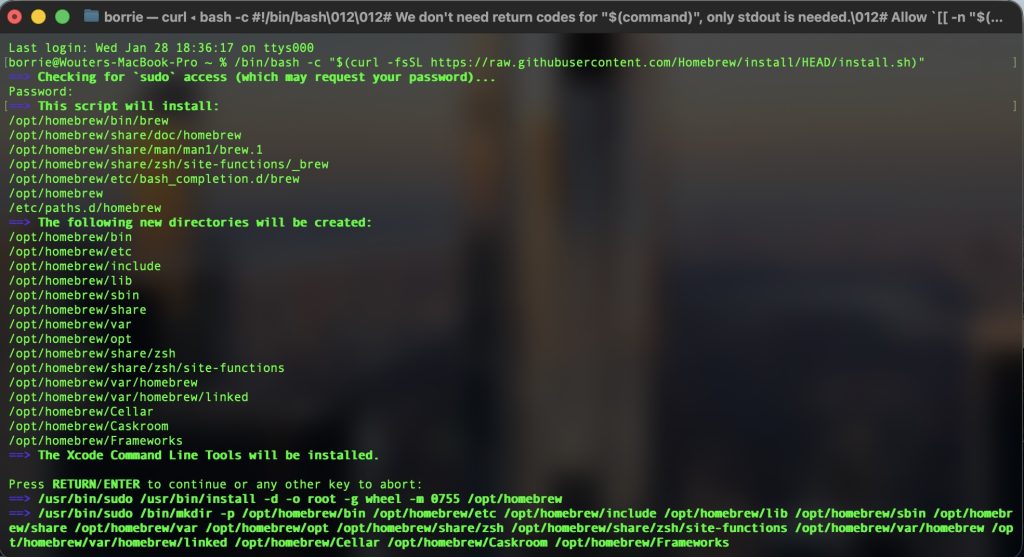
- Start the terminal and execute the following command:
/bin/bash -c "$(curl -fsSL https://raw.githubusercontent.com/Homebrew/install/HEAD/install.sh)"
Homebrew will now be installed on your Mac, follow the instructions closely.
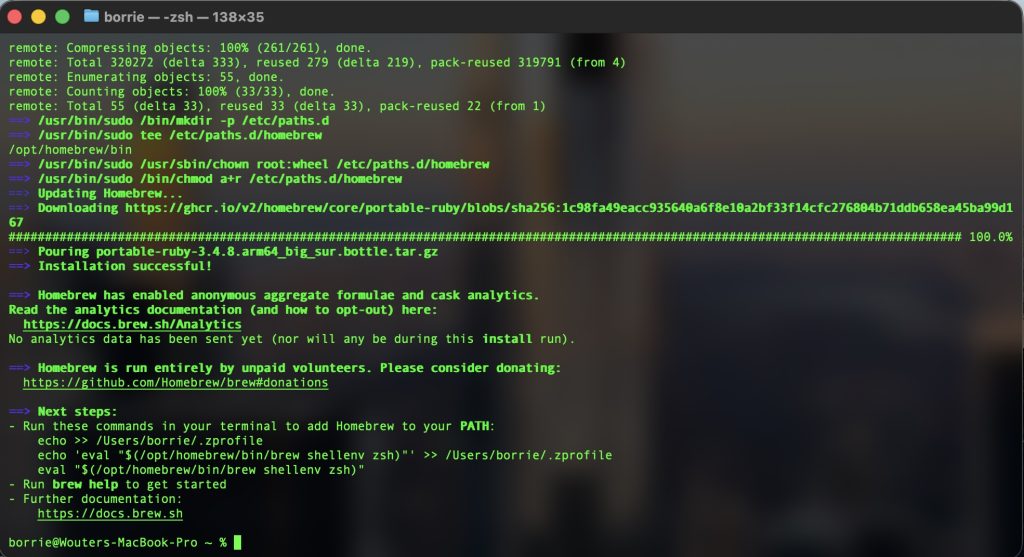
Homebrew is now installed! Now we proceed to install SpaceId
Within the same terminal, execute the following command:
brew install --cask spaceid
SpaceId is now installed and is listed to your Applications folder:
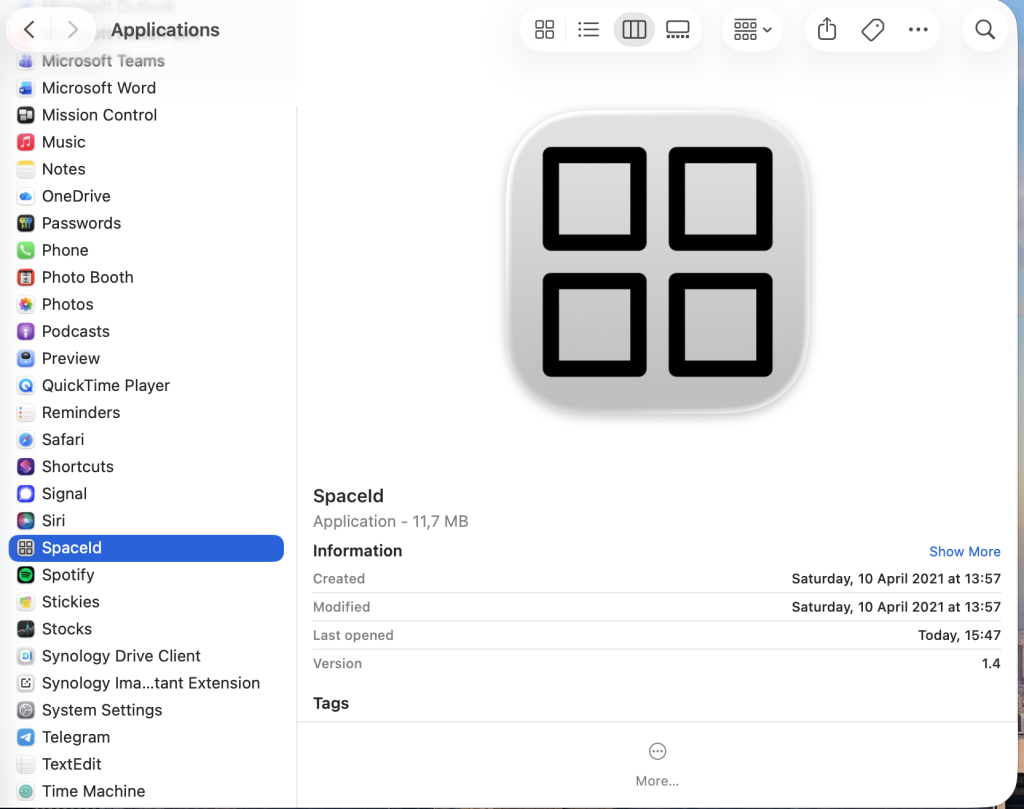
Run the app by clicking on it, see the menubar at the top for yourself. Make sure it is started once you login to your Mac. I recommend the following settings (can be viewed by clicking on the SpaceId icon at your menubar.
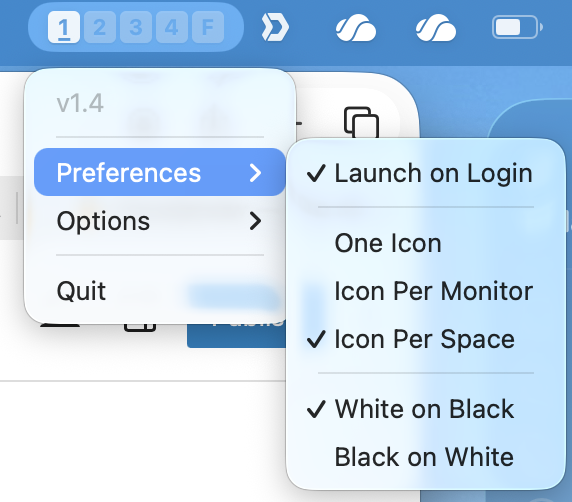
Enjoy further enhancing your Mac! Hopefully apple will come with a native feature for his in the near future.
Last but not least
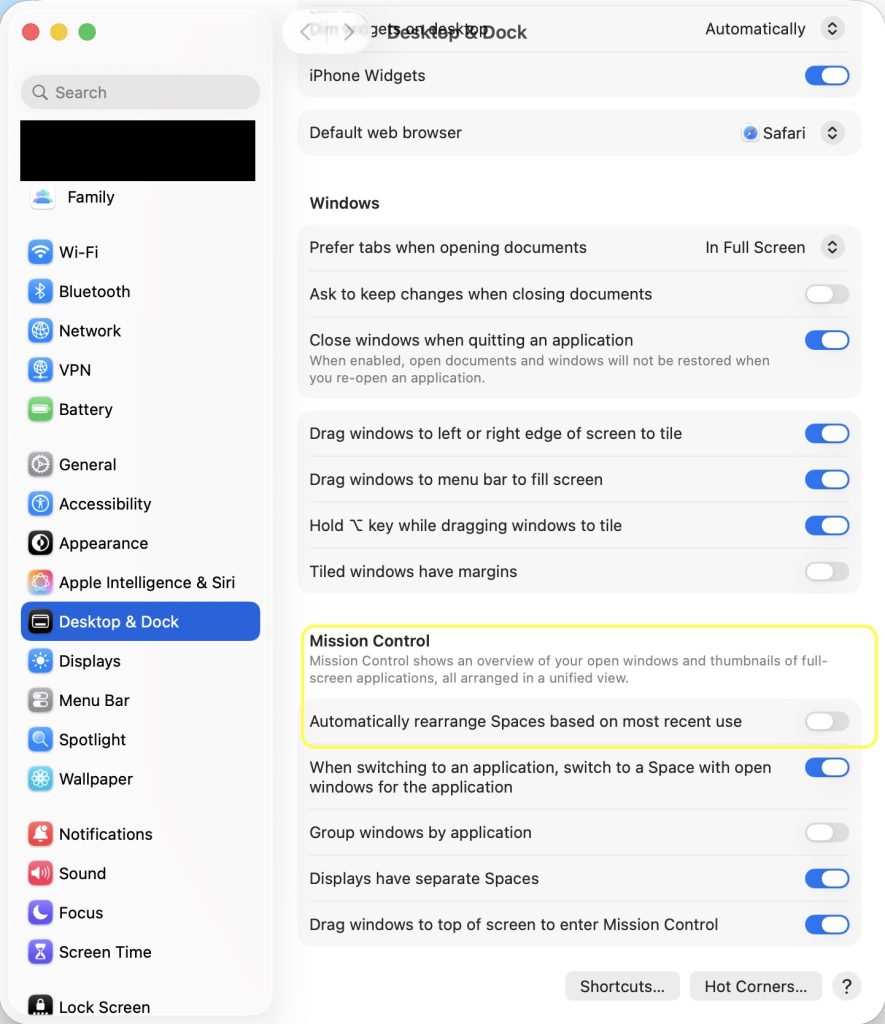
MacOS is reordering your virtual spaces/desktops based on its usage, so spaces/desktops you use often appear in front of the row, destroying the advantages of using SpaceId. To fix this, uncheck the following option by navigating to:
System Settings -> Desktop & Dock -> Mission Control
Uncheck “Automatically rearrange Saces based on most recent use” and you’re fine 🙂